Mouse, touch or keyboard, getting the controls right in car games
Two car games can look alike and still ask for completely different things from your hands. One wants a full keyboard with a handbrake and a boost, another wants nothing more than a press and a release, and a third reads a swipe. Getting comfortable with the input comes before getting good at the game, so it is worth spending a minute on it before your first serious run.
Match the input to the screen in front of you
Before you start, think about what you are playing on. A keyboard gives you many keys but needs a desktop or laptop. A touch screen gives you taps and swipes. A mouse sits between the two, since it can click and drag. Most browser games support at least two of these, and the table below shows which input each of these games reads.
| Game | Main input | Core action |
|---|---|---|
| Cars Driver | WASD or arrows | Drive, brake, boost |
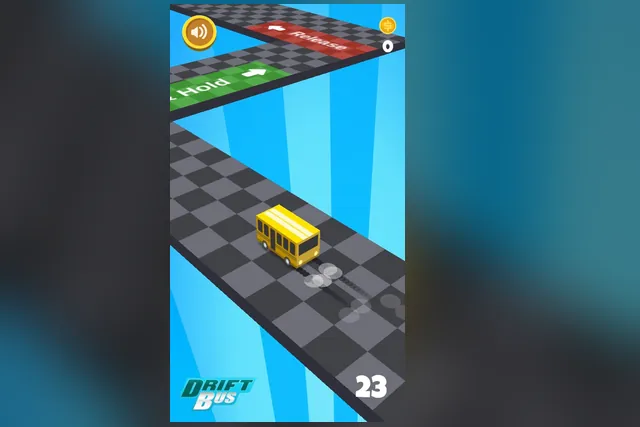
| Drift Bus | Tap and hold | Hold, then release |
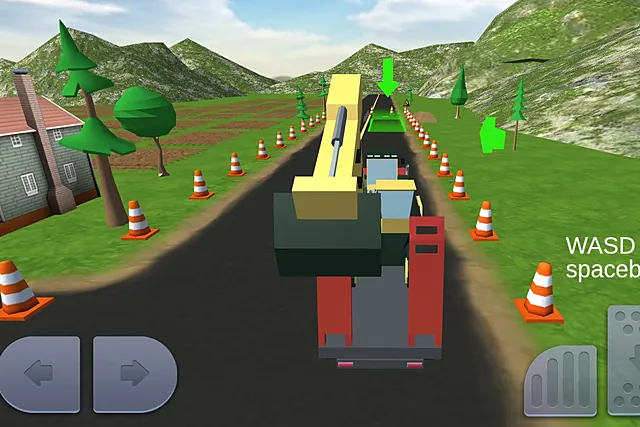
| Real Excavator Simulator | W, A, S, D, Space | Steer to the marker |
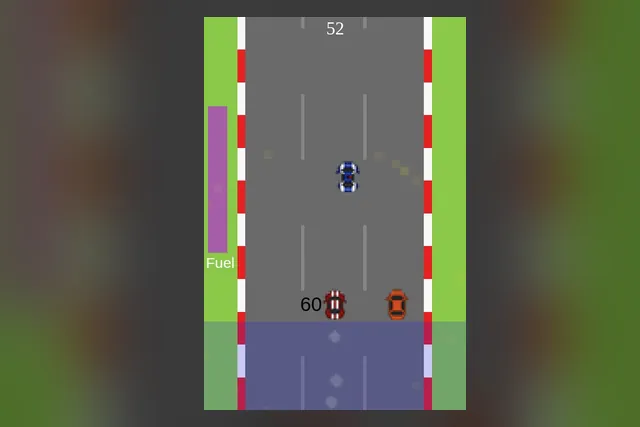
| Math Speed Racing Rounding 10 | Swipe or drag | Change lane |
WASD and a full set of keys
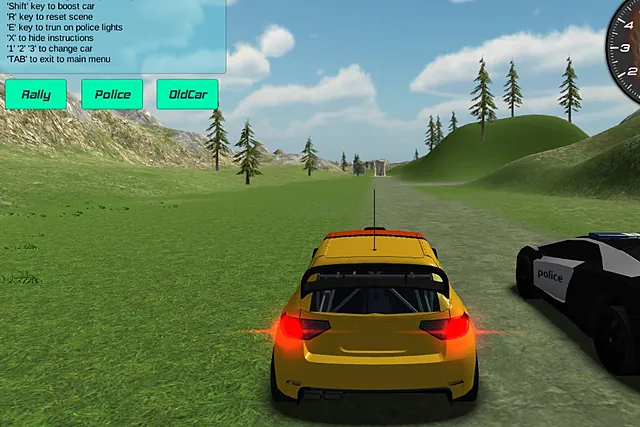
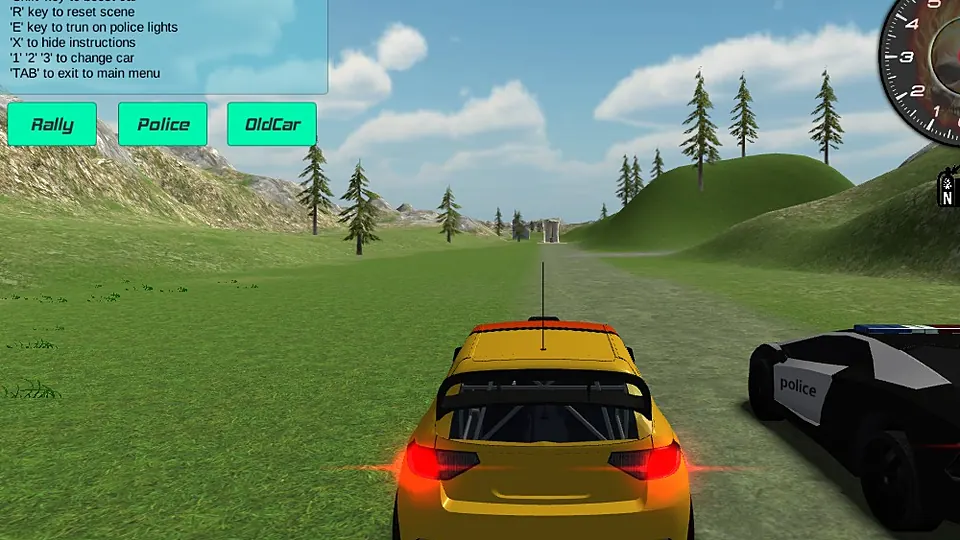
Cars Driver has the richest key list of the four. You drive with WASD or the arrow keys. Space holds the handbrake for sharper turns, Shift gives a boost, C changes the camera view, and E turns on the police lights. The number keys 1, 2 and 3 change the car, R resets the scene if the car ends up somewhere awkward, X hides the instruction panel, and Escape or Tab returns you to the main menu.
Getting comfortable
- Open with the camera. Press C until you find a view that shows both the car and the road ahead.
- Use the handbrake sparingly, on tight corners, and let go of it before you ask the car to accelerate again.
- Press X once you know the keys, so the instruction panel stops covering the sky and the edge of the track.
- Try each of the three cars on the same stretch of ground to see how each one feels.
A practical tip for any game with this many keys is to learn them in layers. Start with steering only. Add the handbrake once the basic driving feels natural, then the boost, and leave the extras such as the lights for later.
Tap and hold
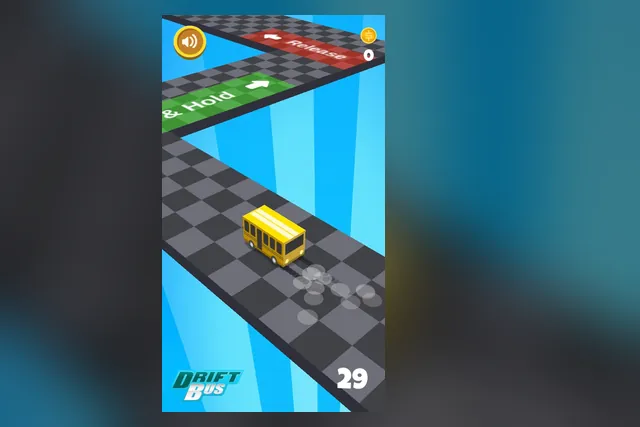
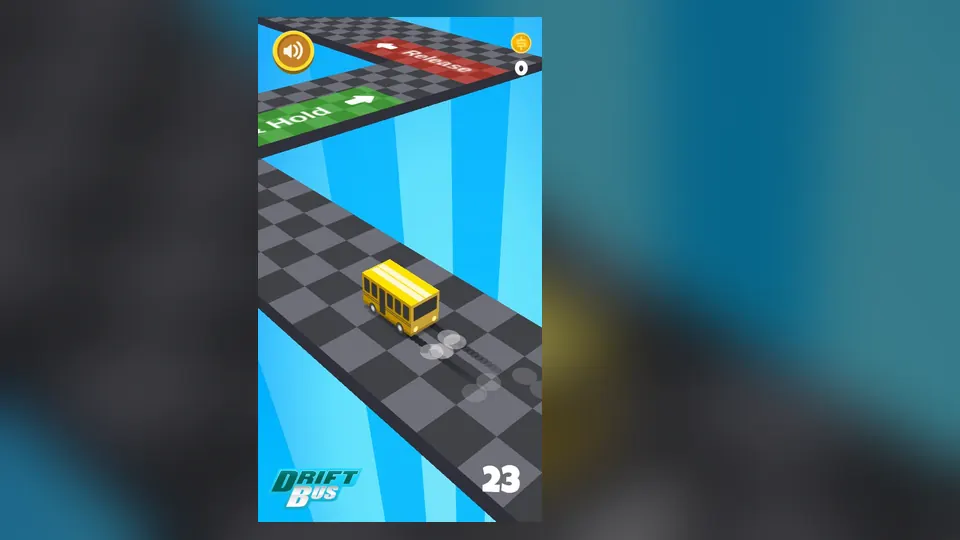
Drift Bus goes to the opposite extreme. A yellow bus slides along a checkered floating track, and the only control is pressing and holding on the screen, with a mouse or by touch. Releasing straightens the bus back along the track. Tiles painted on the track tell you what to do: a green Hold tile and a red Release tile.
Getting comfortable
Press and hold as the bus reaches a green Hold tile, keep holding while it skids around the corner, and let go when it reaches a red Release tile. Read the tiles early, because they show which action comes next. Let go decisively when the bus lines up with the track instead of holding on out of habit, and glance at the track ahead rather than only at the bus. With only two actions, the whole skill is timing, so a steady rhythm matters more than speed.
Keyboard machine controls
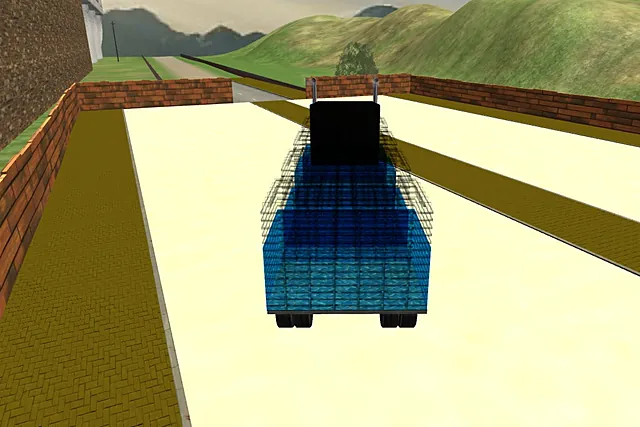
Real Excavator Simulator uses the keyboard in a way that feels closer to a machine than a racing car. W drives forward and S backs up, A and D steer left and right, and Space brakes. On a touch device, on-screen buttons take the place of the keys: left and right arrows steer, and the pedals drive and brake.
Getting comfortable
Brake early. Space takes speed off gradually, so tap it well before the arrow rather than at it. Short taps on A and D keep a long vehicle steady, while a long hold swings it wide. Watch the cones on the verge to judge how far you can drift before leaving the road. If time allows, treat the first approach to a marked area as a rehearsal and line up straight before you commit. Heavy vehicles reward patience, and rushing flat out usually overshoots the marker.
Swipe and drag
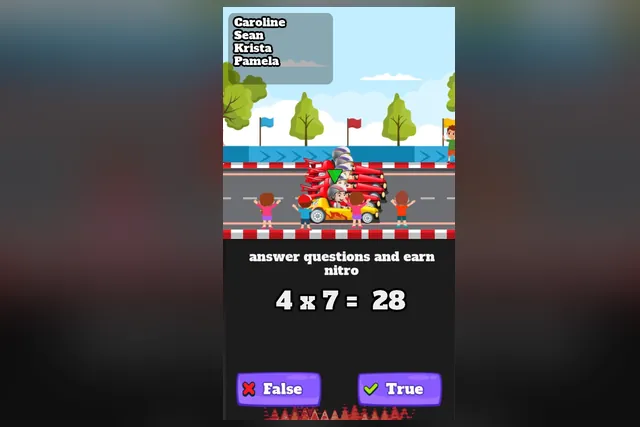
Math Speed Racing Rounding 10 moves the car between lanes with a swipe left or right in the grey area. With a mouse, you drag left or right in the same area. You also need to read the number beside your racecar and steer to the gas can that shows it rounded to the nearest 10, so the input has to stay light enough to leave room for thinking.
Getting comfortable
Look at the last digit first: 5 or more rounds up to the next 10, and 4 or less rounds down. Decide on your answer before the cans get close, then pick the lane. Glance at the traffic ahead before you cross lanes for a can, and grab coins only when they sit on the line you are already taking. Keep an eye on the purple fuel bar between decisions.
Fullscreen and screen orientation
Controls are only part of the picture. The space the game occupies matters too.
Fullscreen
A larger view makes small details easier to read, such as painted tiles, cones and numbers. Most desktop browsers have a fullscreen mode, often on the F11 key, and it can be turned off again the same way. If the game area feels cramped, try it and see whether your reading of the road improves. Click once inside the game area before you use the keyboard, since a page needs to have focus before it receives key presses.
Orientation
Some games here are built for a tall view and some for a wide one. Drift Bus and Math Speed Racing Rounding 10 are portrait games, while Cars Driver and Real Excavator Simulator are landscape. On a phone or tablet, turn the device to match the game. On a desktop monitor, a portrait game sits in a narrow column in the middle of the screen, which is normal, and fullscreen can help you see it better.
A quick routine before every new game
- Find the control list or read the first screen to see which inputs the game uses.
- Pick one input and stay with it, so your hands learn a single habit.
- Do one calm warm-up run and use it to learn the response, not to chase a score.
- Adjust the view with fullscreen or by turning the device if details are hard to see.
- Add extra controls one at a time.
FAQ
Should I use the arrow keys or WASD?
In Cars Driver both drive the car, so choose the set that sits more comfortably under your hands. What matters is that your other fingers can still reach Space, Shift and C without moving your whole hand.
Why does my keyboard do nothing in a browser game?
Click inside the game area first. The page may not have focus yet, in which case key presses go nowhere. If the game also supports touch or mouse, you can use that instead.
Is a mouse or a touch screen better for swipe games?
Either works in Math Speed Racing Rounding 10, which accepts a swipe by touch and a drag by mouse. Pick the one that gives you the steadier lane changes, and avoid switching halfway through a run.